USD
USD EUR
EUR GBP
GBP CAD
CAD AUD
AUD HKD
HKD JPY
JPY KRW
KRW SGD
SGD NZD
NZD THB
THB TWD
TWD 繁體中文
繁體中文 日本語
日本語 한국어
한국어 ไทย
ไทย Français
 Español
 Deutsch
 Português
 italiano
 Nederlands
 English

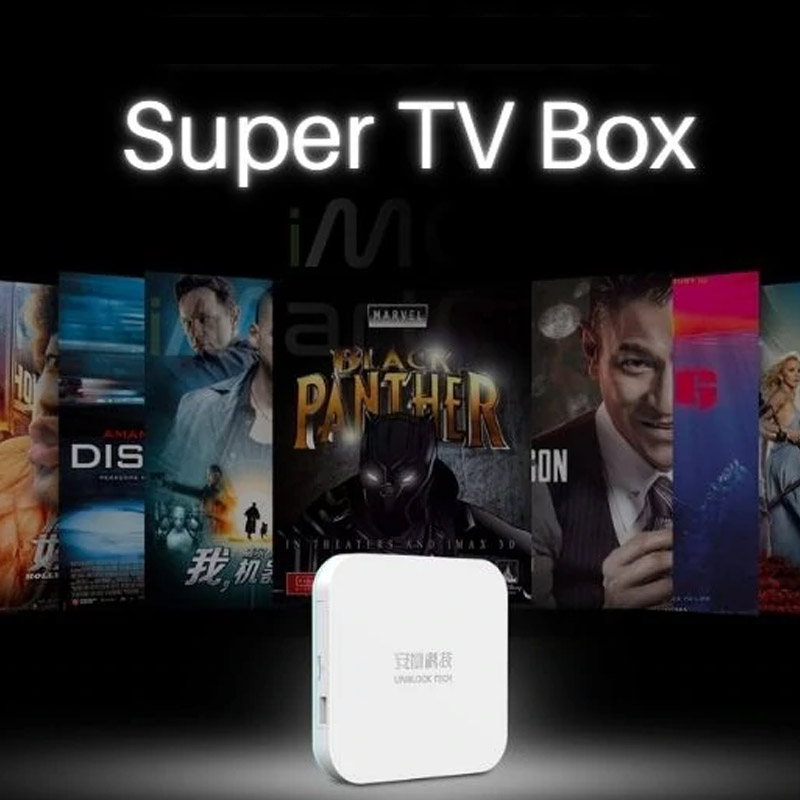

How to Fix Lag, Buffering, and Slow Loading on Your UBOX12 (2025 Updated Guide)!

If your UnblockTech UBOX12 is showing slow loading, no bitrate, buffering, or choppy playback, don’t worry — you’re not alone. Most performance issues are caused by network instability or incorrect app configurations, not by hardware faults.
This guide walks you step by step through the most effective troubleshooting methods to quickly restore smooth HD playback on UP Video (UP Movies) or any other streaming app.
All steps below are independent, but Steps 1, 2, and 5 are mandatory.
After each step, return to the homepage and run One-Click Acceleration, or restart the app.
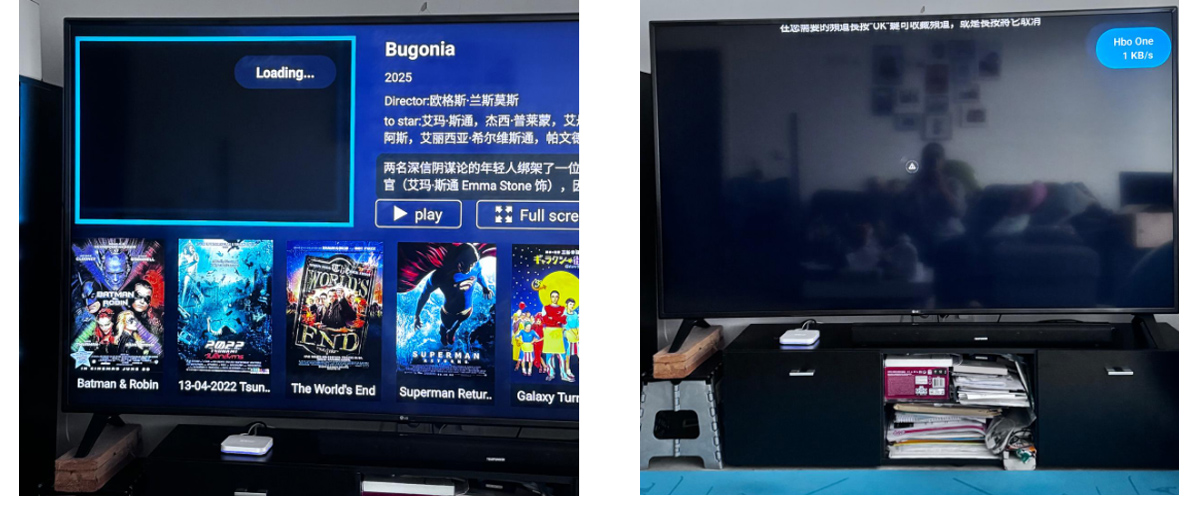
I. Basic Network Checks (Required)
1. Restart your home network devices (power off 3–10 minutes) — REQUIRED
Turn off your router and fiber modem/terminal for at least 3 minutes before powering them back on.
This clears cached data, refreshes your connection, and often resolves 70% of unstable network issues.
2. Switch your network source — REQUIRED
If loading is slow, test both wired and wireless connections:
-
If you're using LAN (Ethernet) → unplug the cable and connect via Wi-Fi
-
If you're using Wi-Fi → turn it off and test using a LAN cable
Wi-Fi interference, weak signals, or aging cables can severely affect streaming quality.
II. Optimize Settings Inside the UP Video App
3. Change the video resolution (highly effective) — REQUIRED
If a video doesn’t load or keeps buffering:
-
Enter full-screen mode
-
Press the Menu button on your remote
-
Change resolution:
-
Movies → Blu-ray (switches to a different server)
-
TV Shows → Standard Quality
-
Lowering quality reduces bitrate requirements and helps when international bandwidth is weak.
4. Turn off the “Video Acceleration” (P2P) feature
Navigation: UP Video → Left Sidebar → Personal Settings → Video Settings → Video Acceleration → Off
Explanation:
-
Video Acceleration uses P2P technology.
-
If your network is strong → turning it off avoids sharing bandwidth with other users.
-
If your network is slow → enabling it may worsen buffering rather than help.
Default recommendation is ON, but you should test both settings.
5. Change decoding mode to “Software Decoding”
Navigation: UP Video → Personal Settings → Video Settings → Decoding Mode → Software Decoding
Software decoding lowers bitrate and reduces processing pressure, which helps smoother playback on weak networks.
III. Test Using a Mobile Hotspot — REQUIRED
6. Connect UBOX12 to your phone’s hotspot
-
Unplug the LAN cable
-
Turn on your phone’s mobile data hotspot
-
Connect your UBOX12 to the hotspot and test playback
If streaming is smooth through your hotspot but not through home Wi-Fi, the issue is:
-
Your ISP’s international bandwidth
-
Router interference or congestion
-
Network instability at home
-
Router aging and needing replacement
If you need help turning on a hotspot, we can provide tutorial videos.
IV. Advanced Option: Use DNS Changer
Search DNS Changer in the UBOX app store or download it via browser.
How to use:
-
Open DNS Changer
-
Start/Activate it
-
Return to the homepage and verify you’re online
-
Test UP Video again
A new DNS can significantly improve global connectivity in certain regions.
90% of buffering issues can be fixed using this guide
The UBOX12 is a powerful device, and most playback problems are not caused by the hardware but by:
-
Unstable home networks
-
Incorrect UP Video settings
-
ISP international bandwidth limits
-
Router or Wi-Fi issues
By following the steps above — especially restarting your network, switching resolution, and testing with a mobile hotspot — most issues can be identified and resolved quickly.
If you still experience problems after completing all steps, feel free to contact us. We're here to help you troubleshoot step by step!